Recentering
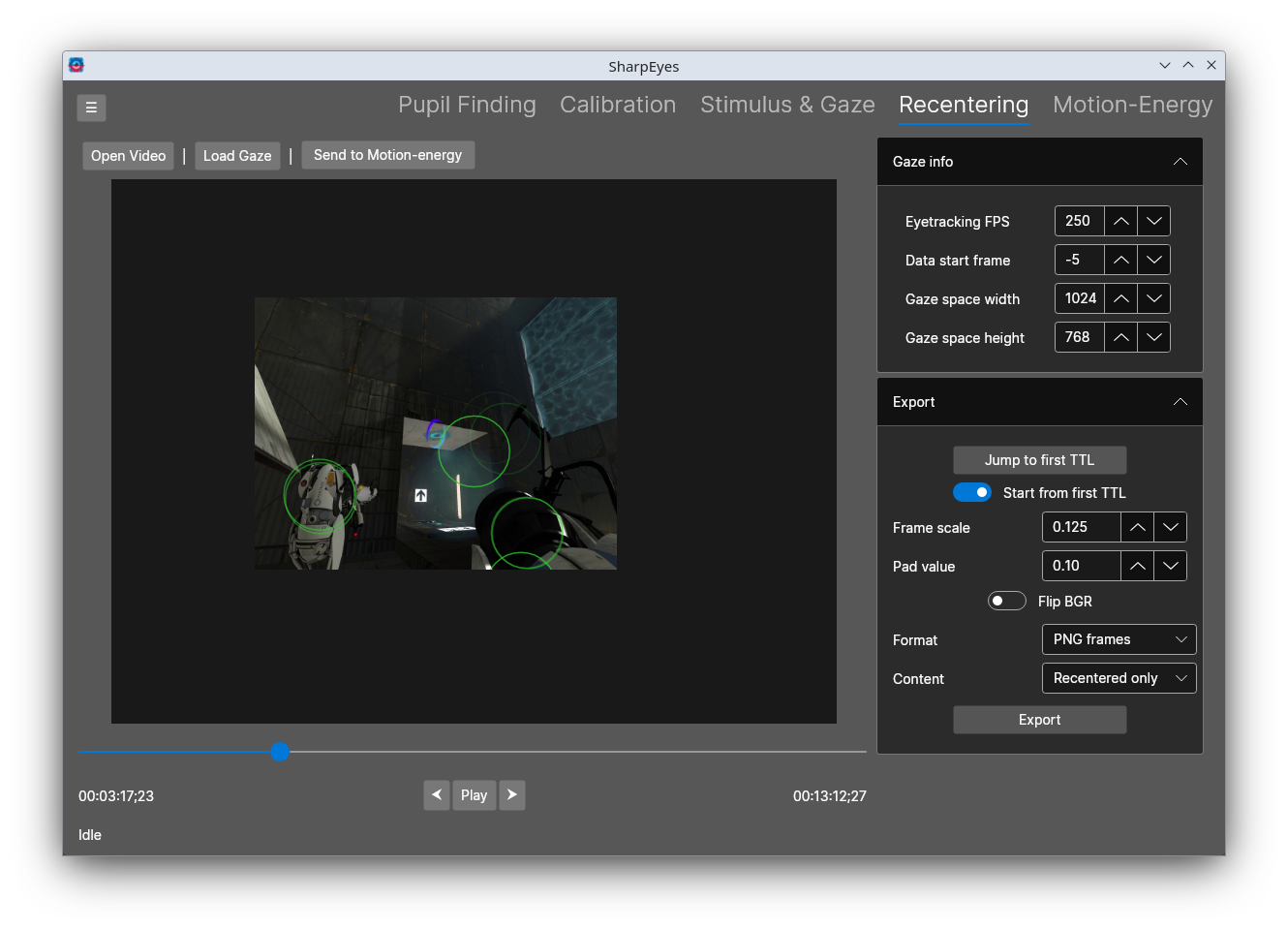
The Recentering tab shifts each frame of the stimulus video so that the gaze position at that frame is always at the center of the output. The result is a retinotopic video where the content the subject was looking at is always centered. This corresponds to what gets projected to visual cortex on the brain.
The video preview shows the recentered view in real time as you scrub through the video. Areas outside the original frame are filled with the pad value.
Data can be loaded directly here with Open Video and Load Gaze, or sent over from the Stimulus & Gaze tab.
Note that when you send data over from the Stimulus & Gaze tab, the temporal alignment of the gaze to the video, eyetracking FPS, and also filtering, are sent over. When you load the video and gaze directly in this tab, you should check these values.
Gaze info
| Control | Description |
|---|---|
| Eyetracking FPS | Frame rate of the eyetracking recording |
| Data start frame | The video frame at which the eyetracking data begins |
| Gaze space width | The width of the gaze coordinate space, in the same units as the gaze data |
| Gaze space height | The height of the gaze coordinate space, in the same units as the gaze data |
Export
Once you have verified the recentering looks correct, click Export to save the output. Sharpeyes can write out either individual frames, or a single numpy array of the data. The frames can be downsampled to be smaller.
Or you can use Send to Motion-Energy to pass the recentered video directly to the Motion-Energy tab (doing so doesn't generate any actual frames, SharpEyes just maintains the logic and data to do so).
| Control | Description |
|---|---|
| Jump to first TTL | Jump to the first TTL frame in the video |
| Start from first TTL | If enabled, export begins from the first TTL frame rather than the start of the video |
| Frame scale | Scale factor applied to each output frame. 1.0 is full resolution; lower values reduce output size. |
| Pad value | Pixel value (0.0–1.0) used to fill areas outside the original frame |
| Flip BGR | Swap the red and blue channels in the output. Use this if colors appear inverted. |
| Format | PNG frames saves each frame as an individual PNG file. Numpy array saves all frames into a single .npy array. |
| Content | Recentered only exports only the recentered frames. Recentered + raw exports both the recentered and original frames side by side. |